ReSCU-Net Demo
In this demo we will train and apply a ReSCU-Net to a dataset showing embryonic wound healing.
Downloading and preparing training sets
Download the dataset from the BioImage Archive.
Download the script to prepare the dataset from this repository under scripts > dataset_scripts > prepare_rescunet_wound_margins.py.
Edit the paths in the script to point to the correct location of the downloaded training dataset on your machine and an appropriate save location. For this demo we will use the dataset folder wound_margin > wound_margin_train. Then run the script. This will generate a new folder with individual subfolders for each object in each timepoint. Each subfolder includes the image data, object mask, and previous object mask.
Training a ReSCU-Net
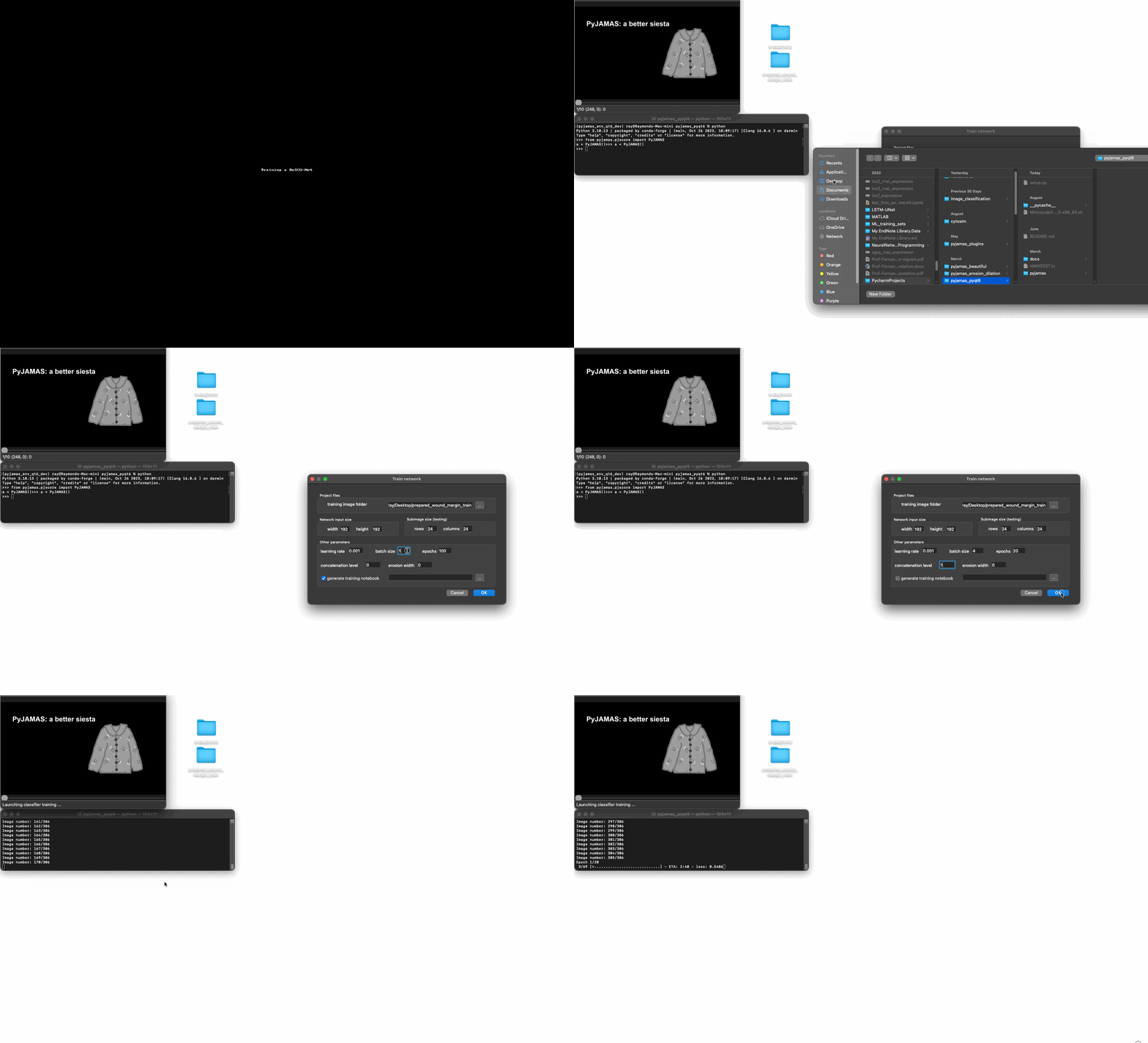
Open PyJAMAS and select the Create and train ReSCU-Net option from the Image > Classifiers menu.
In the window that pops up, edit the parameters. Some suggested values are shown below:
training image folder: path to the training dataset that you prepared.
network input size: size of input images. In this case width and height should both be 192.
generate training notebook: we want to train locally, so we’ll uncheck this box.
step size (testing): this will change the tiling step size during inference (testing) if your network is trained on patches that are smaller than your test image size. Since our network is the same size as our images, we don’t need to worry about this. NOTE: this value can be changed after training, using the Image > Classifiers > Change neural net step size … option.
learning rate: 0.001 works well for this dataset, but other datasets may require higher or lower values.
batch size: this depends on the memory capability of your machine. We’ll set it to 4 here but bigger tends to be better until you run out of memory.
epochs: in this demo we’ll do 20 epochs.
concatenation level: the number of encoder blocks that the previous mask and input image will be processed separately. 1 usually does the trick.
erosion width: during inference this will attempt to separate connected objects by eroding the masks. Since ReSCU-Nets predict each object separately they won’t connect the objects accidentally, so we can leave this at 0.
Select OK. The network will begin training. If you launched PyJAMAS from the command line you can open the terminal to see progress updates. Note: Networks are randomly initialized so even with the same parameters some networks may perform better than others. Try training and applying a few networks to see if one performs best.
Save the classifier by selecting Save current classifier … from the I/O menu.
Applying the ReSCU-Net
Load the classifier by selecting Load classifier … from the I/O menu.
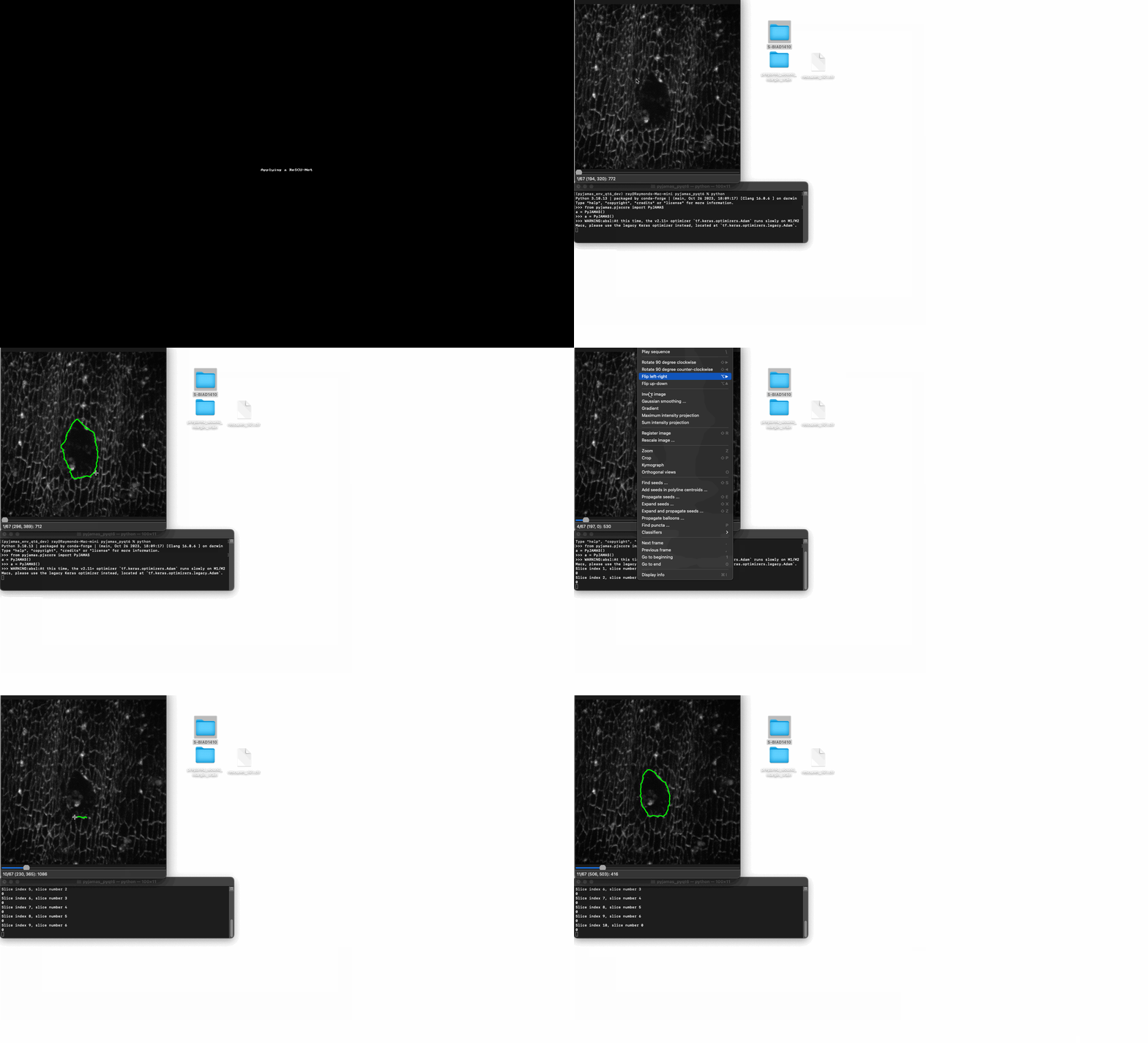
Open a test image from the downloaded data, we’ll choose wound_margin_20181120_e1.tif from the wound_margin_test folder.
Use LiveWire or another annotation method to draw the outline of the wound on the first slice.
Move to the next slice then select Apply classifier to current slice … from the Image > Classifiers menu. This will apply the ReSCU-Net you trained using the current slice and previous segmentation as inputs.
Correct errors if needed using another annotation method.
Repeat to segment consecutive slices in the sequence. Or, if your network works reliably, apply to many slices at once using Apply classifier … from the Image > Classifiers menu.